Introduction #
Thank you for purchasing an Electroconcept product.
Please read carefully the following guide before using USB Node to DMX Interface.
Responsibility:
Electroconcept can’t be held responsible for any damage caused by a misuse of any kind such as loss of utilizing, consumable destruction (tapes, CDs, LED Strips, etc.) or any other financial loss due to an inappropriate use of our products or any impossibility to use them; so as any wiring mistake during the installation.
Guarantee:
Electroconcept products benefit from a two years manufacturer guarantee (electronic components only, except consumable ones e.g plastic components). The product must be returned to Electroconcept postage paid and in its original package. If not, the package will be refused and returned to sender. Electroconcept company is in charge of the product restitution. Are excluded of the guarantee benefits the followings : any damage caused by carelessness, mistake, lack of maintenance by the user (broken, burned, heated, soaked, silted up, etc.); wrong installation or misuse by the user. All our products are tested before sending to buyers. Modifications of any kind are at your own risk and out of guarantee benefits.
Technical specifications #
- PC USB Interface
- USB Protocol: CDC-NCM
- DMX Interface: XLR 3-pin female
- DMX Isolation: optical isolation, namely protection against ground loops
- Universe amount: 1 bidirectional universe of 512 channels
- RDM controller: included
- Power supply: Bus USB 5V (consumption < 120 mA)
- Dimensions : 82 mm x 42 mm x 42 mm
Main presentation #
What about USB Node to DMX Interface?
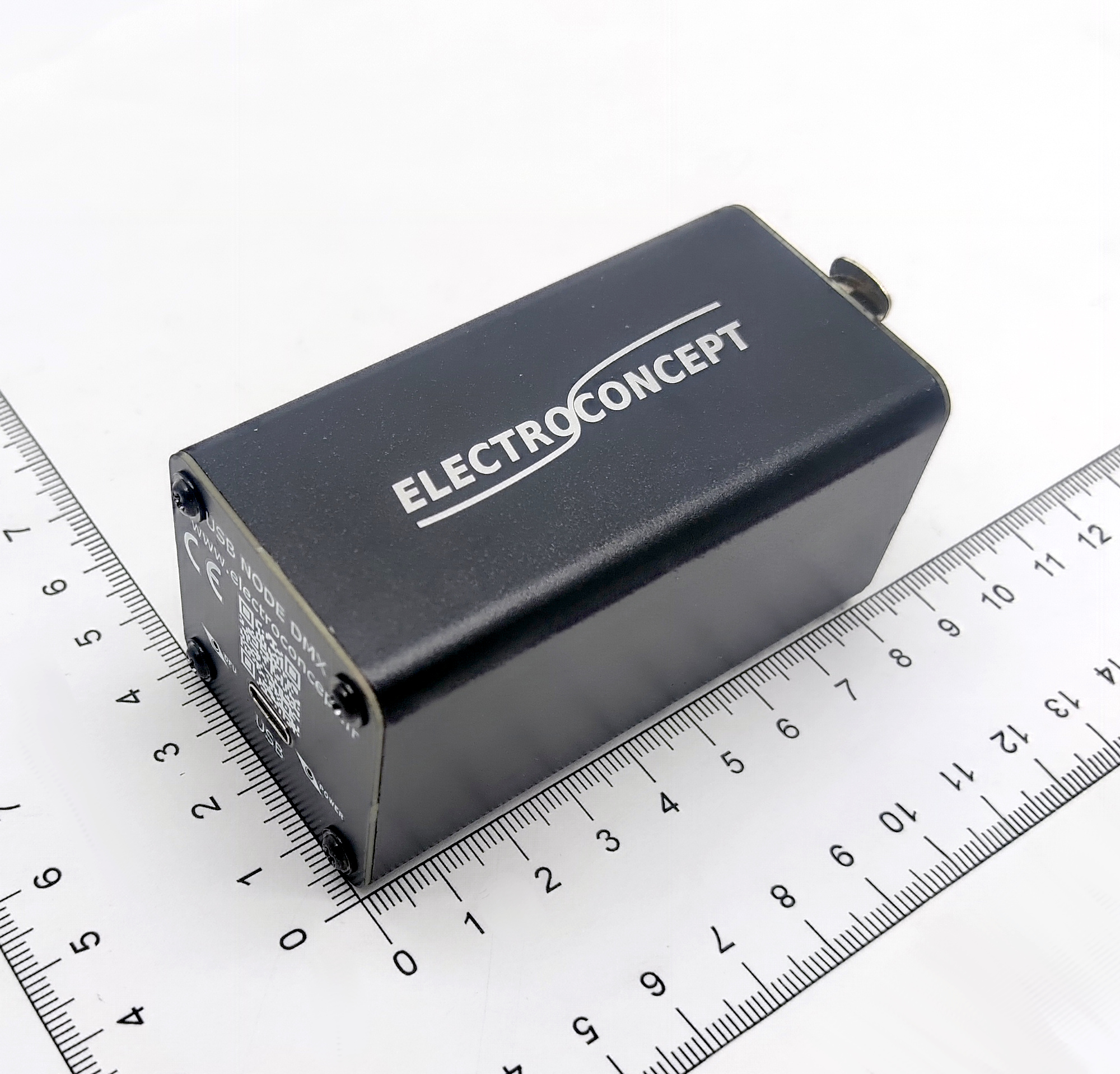
Electroconcept USB Node to DMX Interface is a professional DMX 512 interface that plugs directly to your computer via USB. It allows to drive DMX lightening devices with no need of an Ethernet network board.
The unit includes:
– a WebHID interface for advanced configuration,
– a CDC-NCM USB to Ethernet converter,
– a DHCP server to automatically configure a network,
– an ArtNet Node for the Ethernet ↔ DMX512 conversion,
– a RDM controller to manage spotlights from a distance,
The unit creates a virtual network where:
– USB Node to DMX Interface IP address is: 2.0.0.1;
– Your computer gets the 2.0.0.2 address via DHCP;
– ArtNet softwares spot automatically the USB Node to DMX Interface on the network.
Pros:
Plug & Play: no driver to install manually (CDC-NCM built-in);
Universally compatible: works with all ArtNet softwares;
Cross-platform: Windows 10/11, Linux (kernel 2.6+), macOS 10.15+;
Portable: USB powered, no external power supply;
Online configuration: the interface is reachable from any compatible WebHID browser;
incorporared RDM: spotlights distant configuration without going on stage;
Bidirectionnel: OUT mode (DMX broadcast) and IN (DMX reception).
Drivers’ installation #
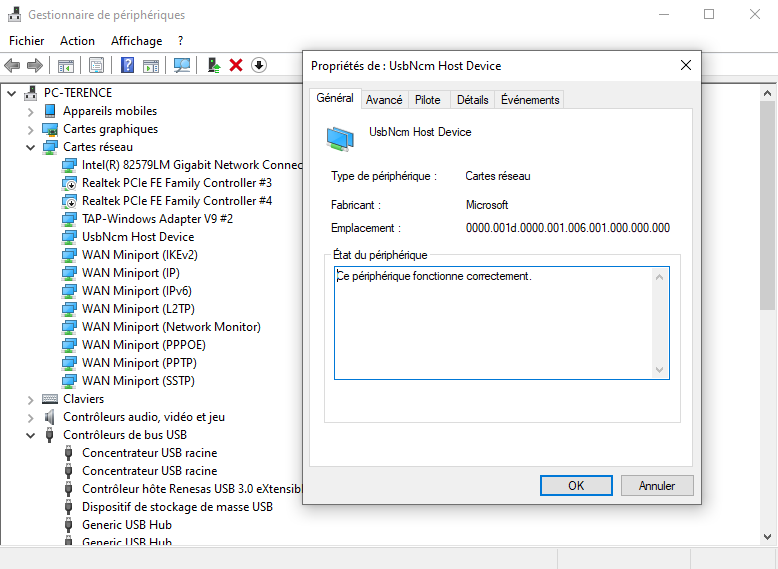
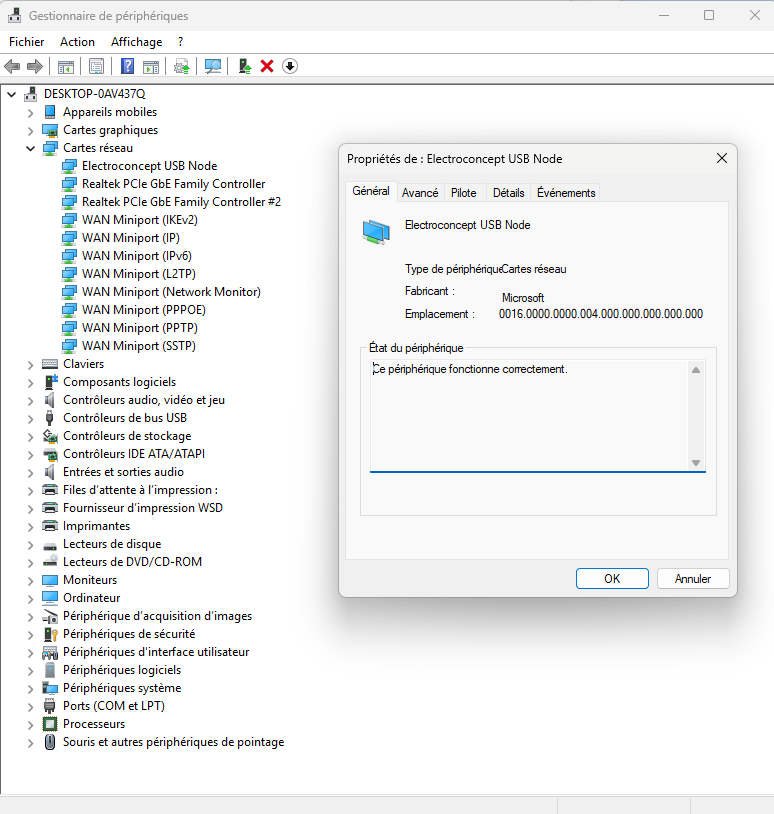
Most of the time drivers aren’t necessary to use the USB Node to DMX Interface because they are generally integrated in the operating system. When the device is correctly set up, it should appear as a network board.
Windows #
Example of how it appears in the device manager on Windows 10 on the left and on Windows 11 on the right:
MacOS #
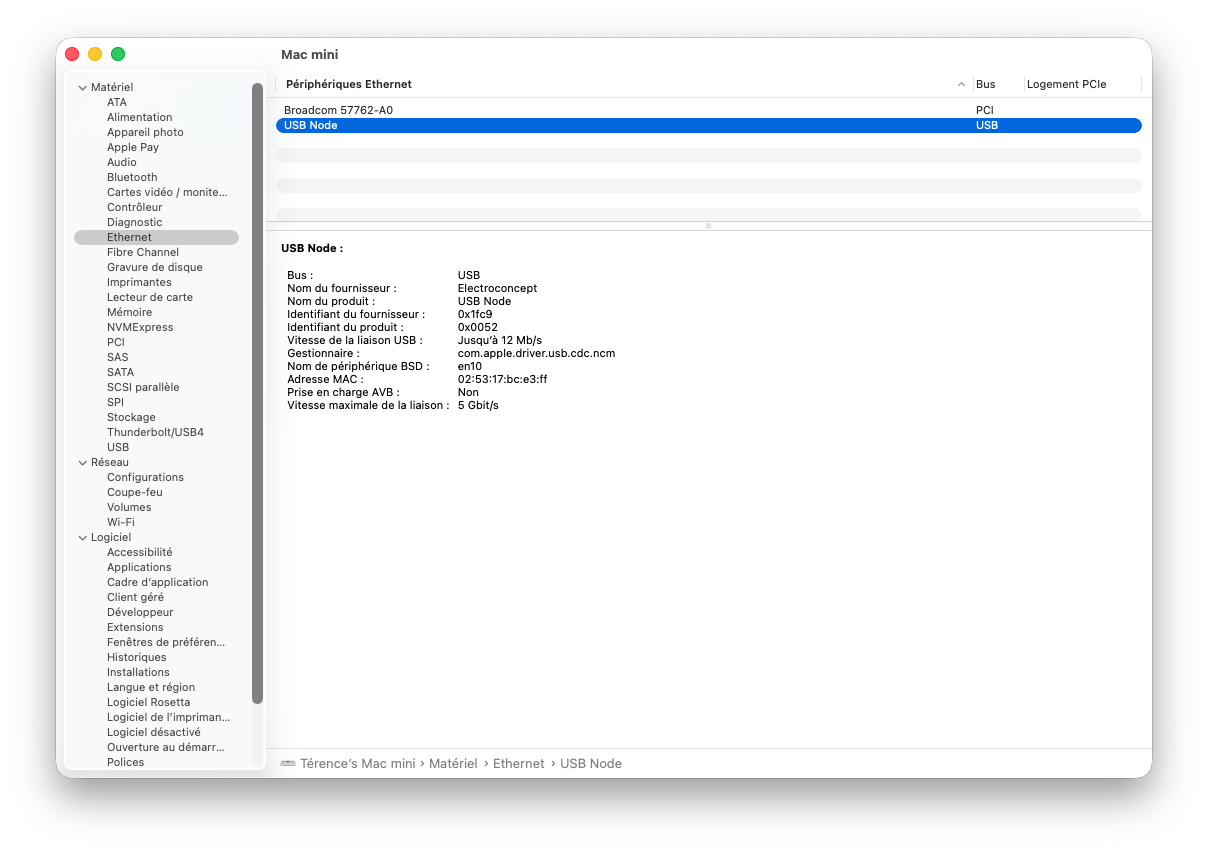
Example of the device manager in the system report menu on MacOS accessible as followed: system settings => general => Information => system report:
Default configuration #
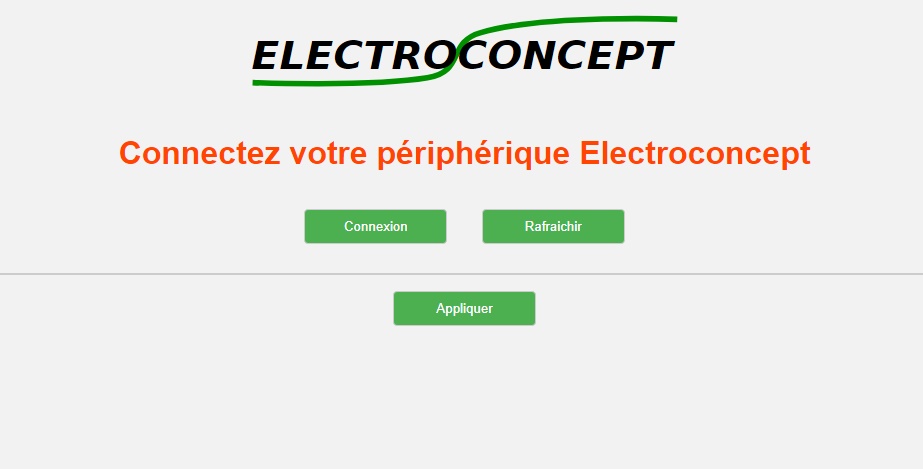
The USB Node to DMX Interface is delivered in OUT DMX mode, that is USB Input and XLR Output. USB Node to DMX Interfacet can be configured with dmx_tools, available on the following link:
https://dmx-tools.electroconcept.fr/
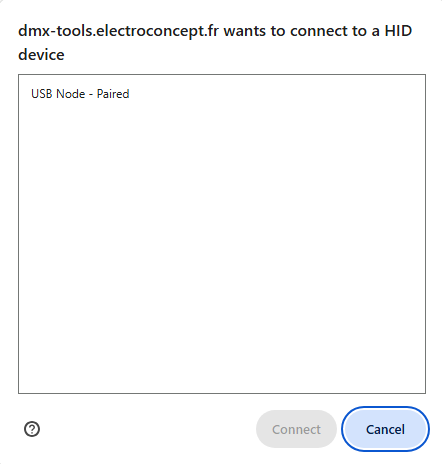
Click on Connect and select your device in the pop up window that appears on your screen.
Settings menu #
Warning: please remember to click on Apply to confirm any change that you want to make. If not, setting changes won’t be taken into account.
System settings #
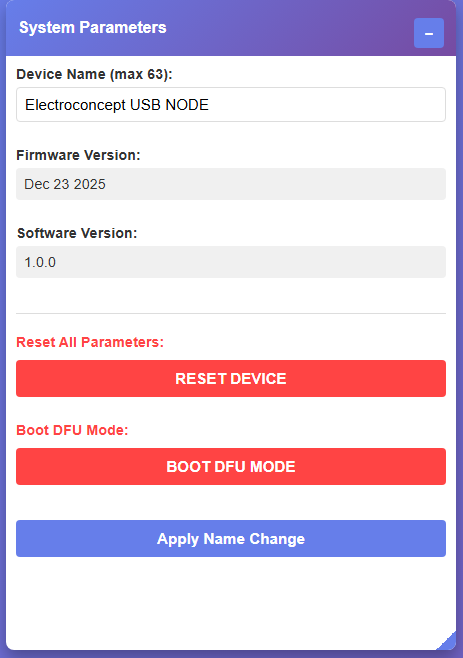
System settings and information.
Nom: Unit name (63 characters max, appears in ArtNet softwares).
Firmware version: Date of embedded firmware.
Software Version : embedded firmware version
RESET DEVICE : Resets the USB Node to DMX Interface to its default settings. warning : this action erases all settings previously made.
BOOT DFU MODE : Restarts the unit in DFU mode to update the USB Node to DMX Interface. Warning: the device will automatically be disconnected by selecting DFU.
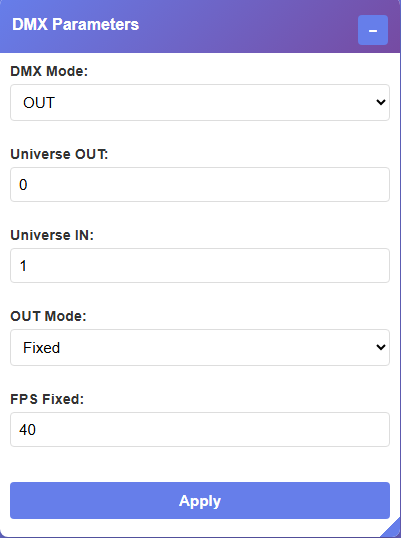
DMX settings #
DMX mode and universes configuration.
DMX Mode: OUT = DMX Output or IN = DMX Input
Universe OUT: ArtNet universe number to listen to (0-255)
Universe IN: ArtNet universe number to send received DMX
OUT Mode:
Fixed : fixed DMX frequency (uses fixed FPS)
Synchro : synchronized with ArtNet packs received.
FPS Fixed: DMX refreshing frequency in Fixed mode (16-44 Hz, défaut : 40 Hz)
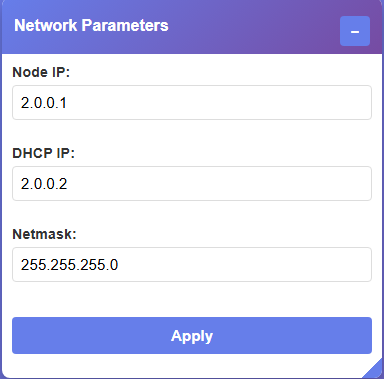
Network setttings #
Network unit configuration
- Node IP: Unit IP address, by default : 2.0.0.1.
- DHCP IP: IP address assigned to the PC by DHCP integrated server, by default : 2.0.0.2.
- Netmask: subnetwork mask, by default: 255.255.255.0
⚠️ Warning: Changing theses settings can affect the ArtNet communication. Do not change theses settings unless you are fully aware of what you are doing.
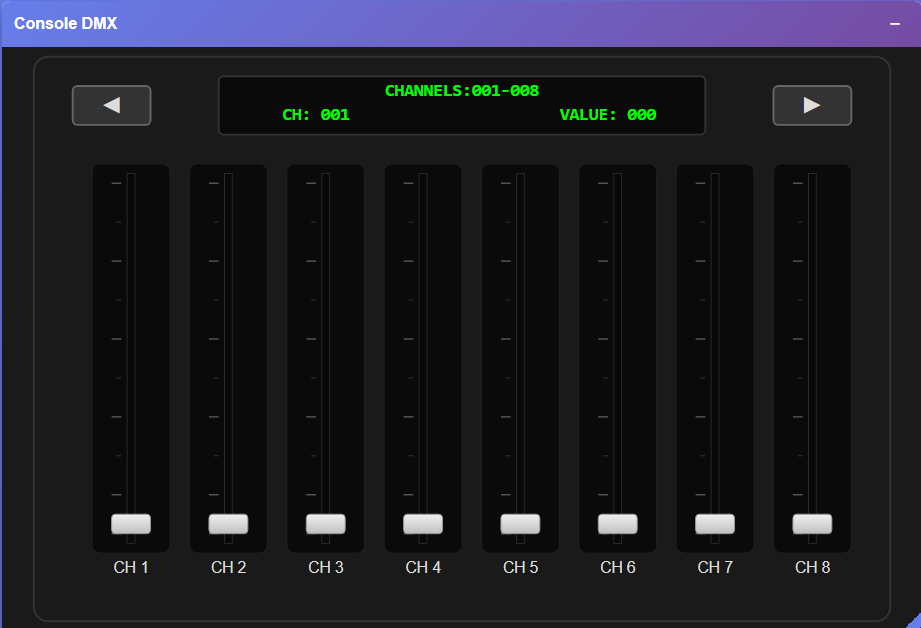
DMX console #
Virtual console with 8 faders to control manually DMX channels.
Perfect to test your spotlights without lightening software.
Faders: Move cursors to adjust values (0-255)
Navigate through channels pages (1-64, 65-1288, etc.) by clicking on the targeted channels so the screen shows the selected channel and its value.
Prev/Next: navigate through channels pages (1-8; 9-16, etc.)
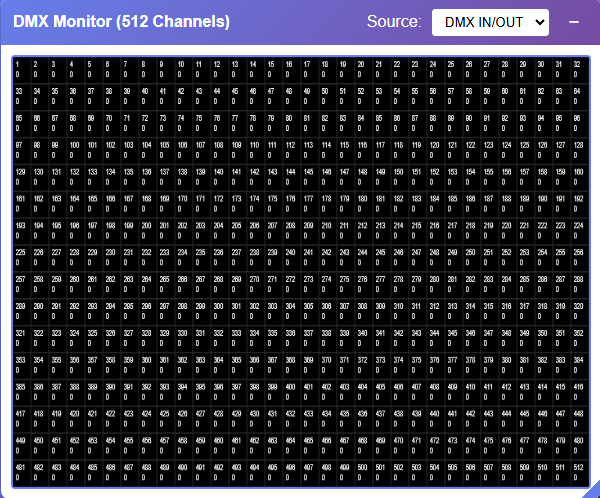
DMX Monitor #
Displays in real time 512 DMX channels in the form of a colored grid.
Convenient to visualize what comes out on the DMX line.
Each cell represents a DMX channel (1 to 512).
The color indicates a value, black = 0; red = 255.
RDM Discovery #
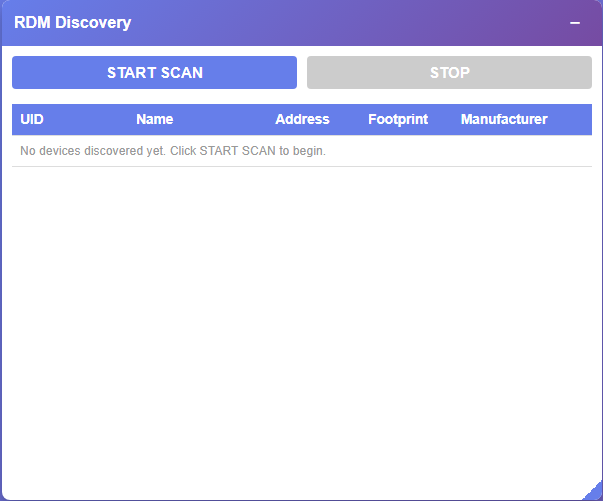
Discover and configure automatically your RDM compatible spotlights.
Scan can take up to 2 minutes depending on the amount of spotlights to look for.
START SCAN: Launches RDM discovery on the DMX line.
Devices list: Displays spotlights found with UID, name, DMX address, footprint, manufacturer.
Edit Address: Changes instantly DMX address of a spotlight. Edit button in Address column.
HID Debug Console #
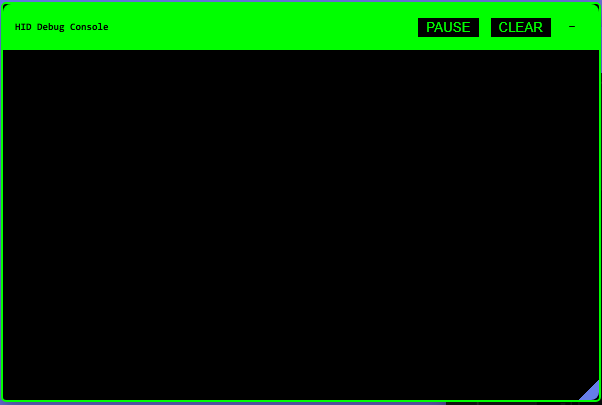
Debug console to visualize WebHID and RDM communications, useful for advanced repairing only or to check RDM correct functioning. It displays all sent requests to the unit and RDM responses (allows to diagnose discovery problems).
PAUSE: freezes display to read messages.
CLEAR: erases console display.
Usage #
To use the USB Node to DMX Interface, you have to be equiped with a compatible ArtNet software and a DMX XLR 3-pin wire (not included) in order to plug it to your devices. Once your ArtNet compatible software is selected, you can configure your Output device by selecting it in the Output settings of your ArtNet software.
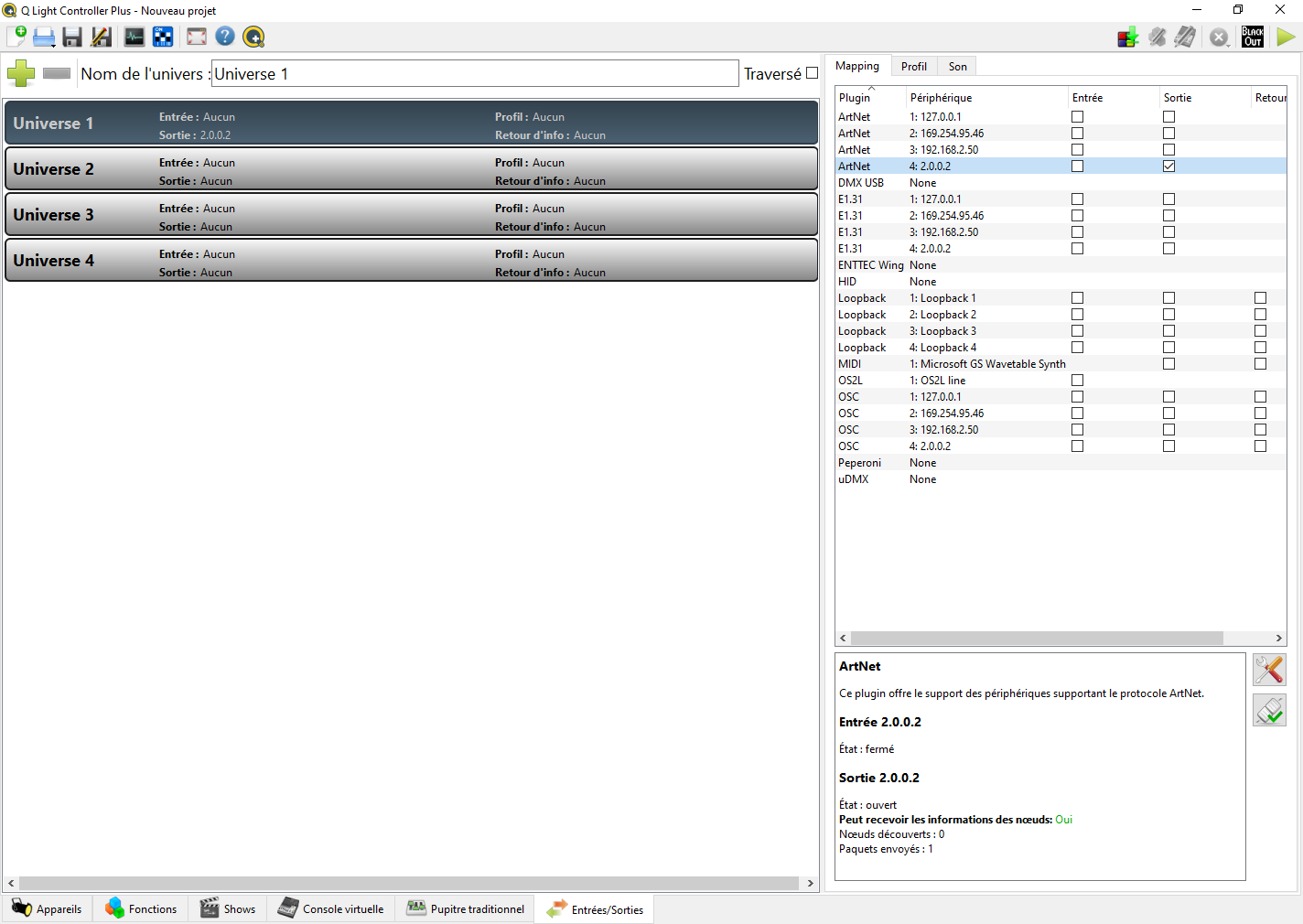
Q Light Controller+ QLC+ #
To set up your USB Node to DMX Interface, go on the tab Inputs / Outputs at the bottom right and check the Output check box of the ArtNet line corresponding to the USB Node to DMX Interface. Its LED should blink fast.